How AI review works
The AI proposes. Gadwal shows you the exact SQL. Nothing runs until you approve it, and the AI learns your answer.
Review applies to connections set to Ask before write, which is where Local, Development and Staging connections start. On Full, ordinary writes run at once, but destructive and unrecognised statements still come to Review. On Read-only, writes are refused before they get this far.
- 1 · Your AI app Claude, Cursor, Codex or VS Code on this Mac calls a tool
- 2 · HTTP + token
http://127.0.0.1:55183/mcpwith its ownBearertoken - 3 · Gadwal MCP Loopback only. Web pages (403) and bad tokens (401) stop here
- 4 · Policy The connection's AI level decides. Hidden columns are removed
Read
- Runs in a read-only session (Read-only and above)
- Result back to the AI, capped and without hidden columns
Write
- Staged in Review with the exact SQL (Ask before write; destructive at every level)
- You Approve or Reject
- Backup first if destructive, then the database runs it
- The AI learns the outcome (
wait_for_change)
1. The AI proposes a change
The AI calls a write tool, such as execute_sql, update_rows or drop_object. Gadwal doesn’t run it. It classifies the statement for that database’s dialect (read, write, schema change, destructive or unclassified), stores it as a pending change, and answers the AI right away:
{
  "status": "pending",
  "change_id": "…",
  "message": "Waiting for the user to approve this change in Gadwal. Call wait_for_change with this change_id to learn the outcome.",
  "expires_at": "…"
}
For a destructive change, the message adds that Gadwal backs up the affected tables before it runs. A pending change expires after 24 hours if nobody decides.
2. Gadwal tells you
The AI pill in the window’s toolbar shows the connection’s level as a word (Read, Ask or Full), a badge with the number of changes waiting, and a green dot while an AI app is connected. Click it to see the waiting changes; each one opens Review.


3. You review the exact SQL
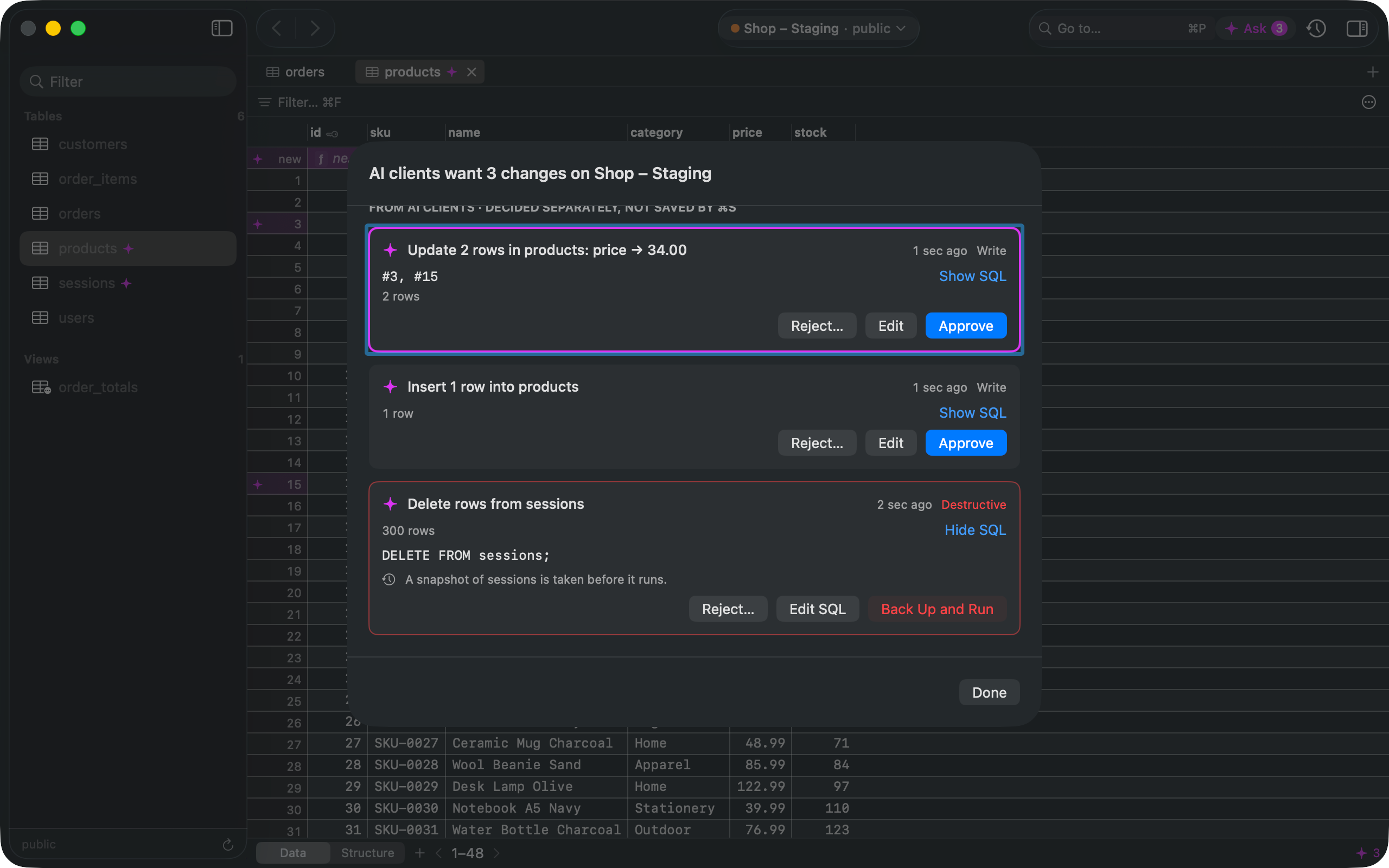
Review lists every waiting change on that connection: the app that asked, what kind of statement it is, and the SQL that will run. Destructive changes are flagged and say what will be backed up first.
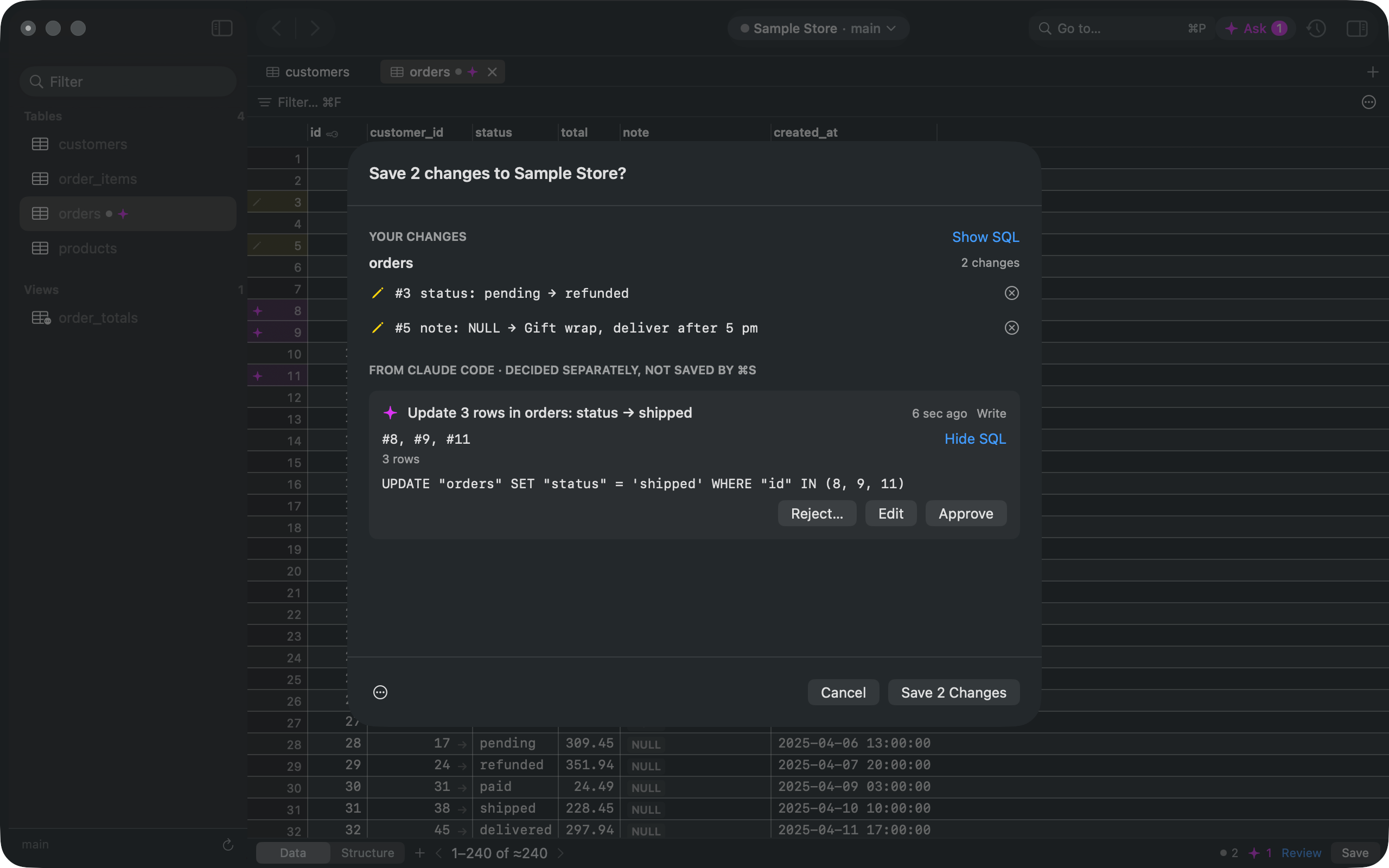
AI changes to a table you have open also appear in that table’s save sheet, under your own edits. They are decided one by one and are never saved by ⌘S.
4. Approve, edit or reject
Each change has its own buttons:
- Approve runs it. For a destructive change the button reads Back Up and Run (Run on BigQuery, which keeps 7 days of time travel instead of a snapshot), and it’s never the Return key: use the button or ⌘⌫ on the focused card.
- Edit SQL lets you change the statement before you approve it. Gadwal classifies the edited SQL again.
- Edit (on row edits) takes the change over as your own edits in the grid; you then save them with ⌘S. The AI is told you took it over.
- Reject asks for an optional reason for the AI (⇧⌘⌫). Without one the AI hears “The user rejected this change.”
Before a row edit runs, Gadwal reads each row again by its key (not on BigQuery, where that read would be a billed query). If a row changed after the AI proposed the edit, nothing is applied and the AI is asked to read it again and propose a new change.
5. The AI is told the result
While you decide, the AI can call wait_for_change (it waits up to 55 seconds by default, 120 at most) or get_change_status. The answer is one of:
| Status | Meaning |
|---|---|
pending | Still waiting for you. |
approved | You approved it and it is being applied. |
applied | It ran. The outcome is included. |
rejected | You rejected it. Your reason is included. |
expired | Nobody decided within 24 hours. |
failed | It was approved but didn’t run, with the reason. |
unknown | The connection dropped while it was saving, so it may or may not have run. Check the data before you retry. |
list_pending_changes lists the app’s own changes that are waiting or were decided recently. An AI app only ever sees its own changes.
6. It’s in the log
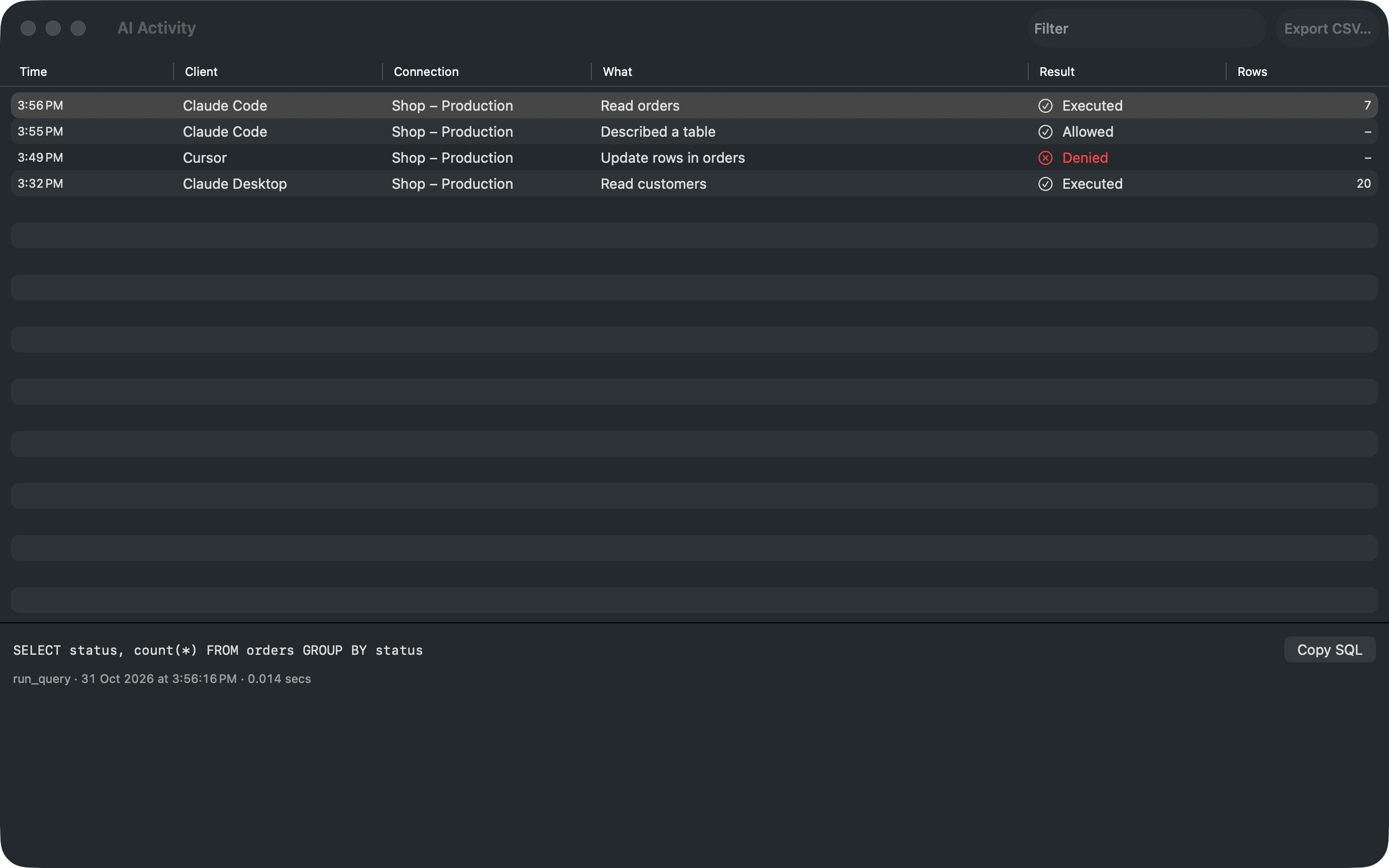
Every call, including each proposal and your decision, is recorded in AI Activity… on the AI & MCP page: the time, the app, the connection, what it did, the SQL and the result (for example Executed, Allowed, Staged, Approved, Rejected or Denied).