
Backups
In Gadwal 1.0 you back up by hand, to a folder on your Mac or a folder in iCloud Drive. Every engine except BigQuery.
Make a backup
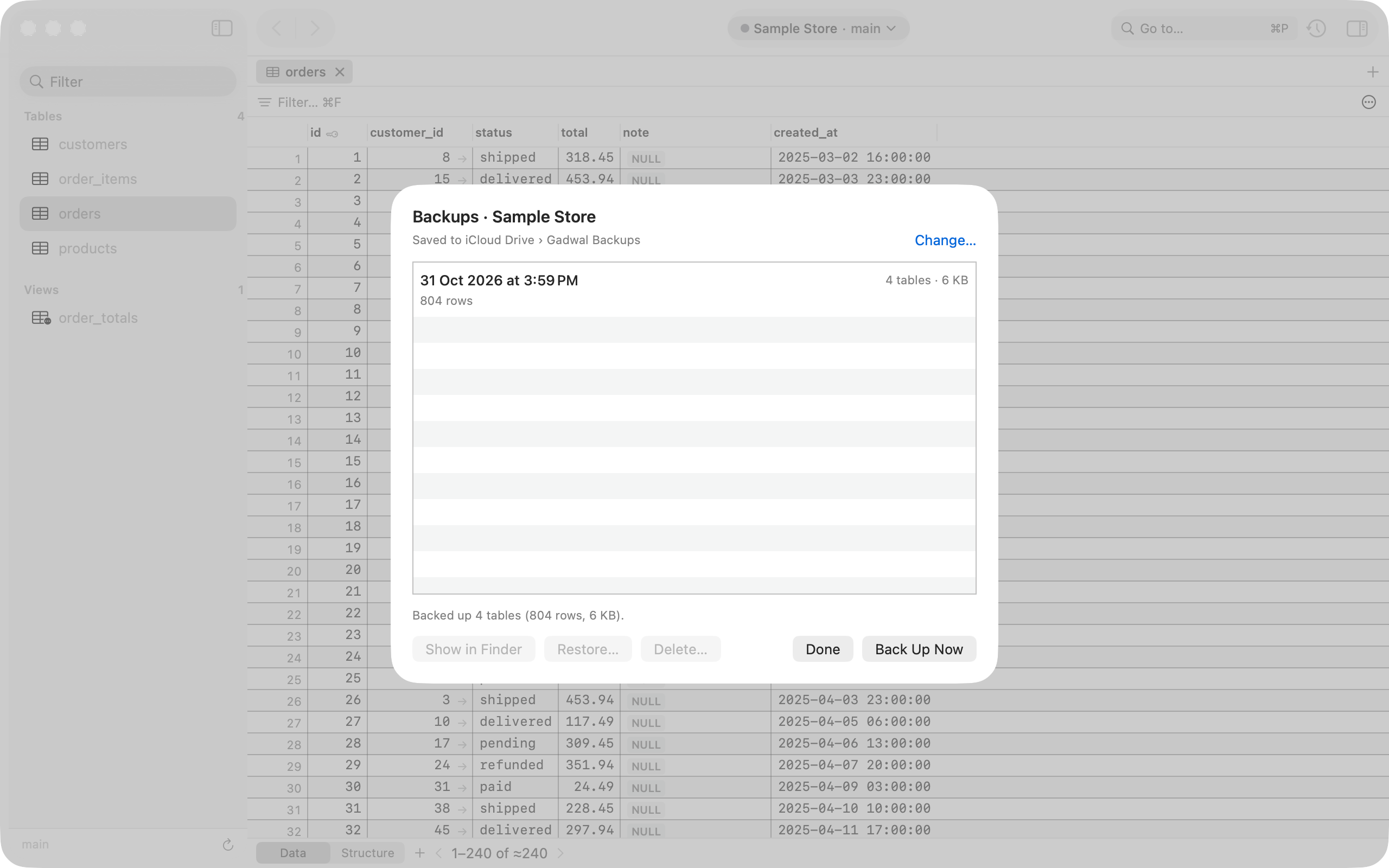
- Select a connection and choose Connection › Backups… (or right-click the connection, or click Backups in the toolbar of its window), then click Back Up Now.
- The first time, pick a destination folder (you can change it later in Settings › Backups). Any folder works, including one in iCloud Drive (Apple then syncs it). Gadwal remembers the folder.
- Watch the progress, or click Cancel to stop. When it finishes, the backup appears in the connection’s backup history with its size and time.
Back Up Now and Restore need an active trial or the lifetime unlock.
Before backing up a very large table (common on ClickHouse), Gadwal shows an estimate of the row count and warns you above 1,000,000 rows, so you can stop if it would take too long.
What a backup contains
Each backup is one folder. Inside it is a compressed SQL file for each table, plus a manifest.json listing the engine, server version, tables, row counts, file sizes, a SHA-256 checksum for each file, and the Gadwal version.
| Engine | Files |
|---|---|
| PostgreSQL | One .sql.gz per table: structure, then rows as INSERT statements |
| MySQL, MariaDB, WordPress | One .sql.gz per table: structure, then rows as INSERT statements |
| Cloudflare D1 | One .sql.gz per table, read through the Cloudflare API |
| ClickHouse | One .sql.gz per table. Gadwal shows a row-count estimate first |
| SQLite | One .sql.gz per table: structure, then rows as INSERT statements |
| DuckDB | One .sql.gz per table |
The .sql.gz files are plain SQL once unzipped, so you can read them in any text editor or run them with your engine’s own command-line tool.
Backup history
Each connection keeps a list of its backups. From the list you can Show in Finder, Restore…, or Delete… a backup (Delete moves its folder to the Trash).
Restore
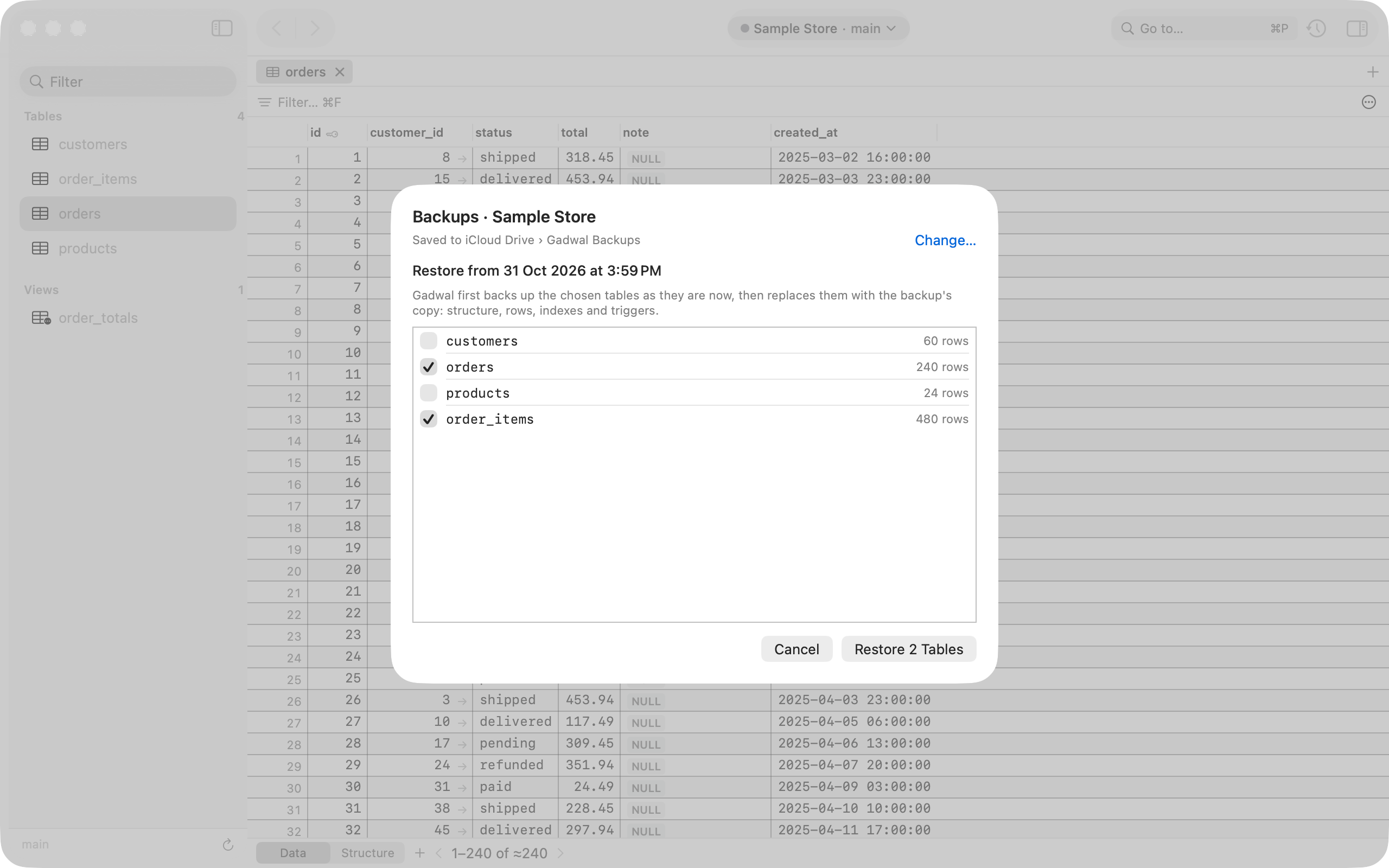
- Pick a backup from the connection’s history and choose Restore….
- Choose the tables to restore.
- Gadwal backs up those tables as they are now, so you can undo the restore.
- It replays the backup, inside a transaction where the engine supports one, and shows a summary of what was restored.
On a connection tagged Production, you type the connection’s name to confirm before anything is changed.
BigQuery
Gadwal 1.0 doesn’t make BigQuery backups. BigQuery keeps 7 days of history for every table (time travel), so you can query or restore a table as it was at an earlier time. Backups for BigQuery are planned for a later version.
Automatic backups before risky changes
Before a destructive statement from an AI app runs (DROP, TRUNCATE, DELETE without WHERE and similar), and before WordPress search and replace, Gadwal backs up the affected tables as SQL (BigQuery uses its 7-day time travel instead). These backups are always on. Each one is listed with the change that caused it, and you can open the backup file from the AI activity log.
Coming later
Not in 1.0, planned for 1.0.1: scheduled backups, and pushing backups to Amazon S3 and Cloudflare R2.